
Most image plugins optimize new uploads. The bigger win is usually the images already on your site: every photo added over the years, each with several thumbnail sizes. Bulk optimization works through all of them in one run. This guide covers what to check first, how to do it with LeanPixel, and how to reverse it.
Before you start
Know what a bulk run touches. WordPress stores more than the file you uploaded. For each image it also keeps a set of smaller sizes, so a library of 500 images can easily be several thousand files. A bulk optimizer should handle the full-size image and every one of those sizes.
Make sure you can undo it. Take a normal backup of your site, and use a tool that keeps the original of every image it changes. Then a result you do not like is a click to reverse, not a restore from backup.
Decide how hard to compress. A balanced, lossy level suits most sites. If you are unsure, read how to optimize WordPress images without losing quality first, or run the bulk pass at the default level and review a few pages afterwards.
Leave out anything that must not change. Logos, images used by other software, or a folder you manage by hand can be excluded before you begin.
Bulk optimize with LeanPixel, step by step
1. Install and connect
- Install and activate LeanPixel. You are taken to Media → LeanPixel.
- Enter your email address and click "Get my free API key".
- Enter the 6-digit code that is emailed to you. Your site is now connected.
If you would rather nothing left your server, choose "Process images on this server" instead. No email or key is needed. It is slower, and savings are usually smaller.
2. Check the settings
The defaults are sensible, so you can skip this. The ones worth a look before a first bulk run:
- How hard to compress. Balanced is the default.
- Keep a copy of every original. On by default. Leave it on.
- Images to leave alone. Add a rule per line, such as
logoor2019/, for anything to skip. - Resize large images. Off by default. Setting a maximum of 1920 or 2560 pixels scales down oversized uploads as they are optimized.
3. Click "Optimize all images"
That is the whole step. Progress is shown on the screen, with running totals for what has been saved.
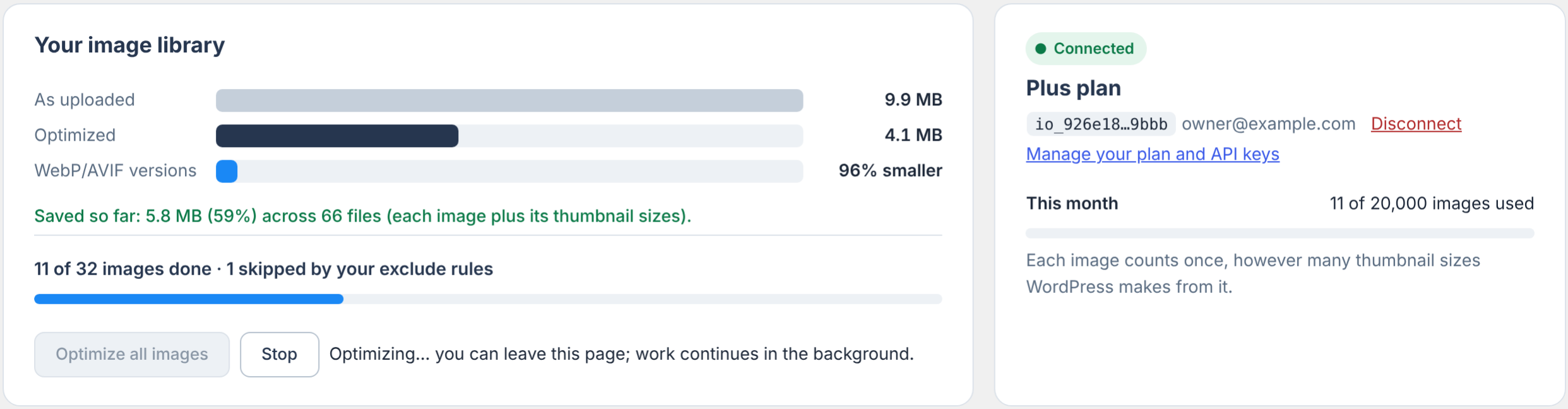
You do not have to stay on the page. The work continues in the background, and if it is interrupted it resumes by itself. From then on, new uploads are optimized automatically.
4. Review the result
When the run finishes, the screen shows your library as uploaded, after optimizing, and as WebP or AVIF. In the media library, each image shows its own saving.
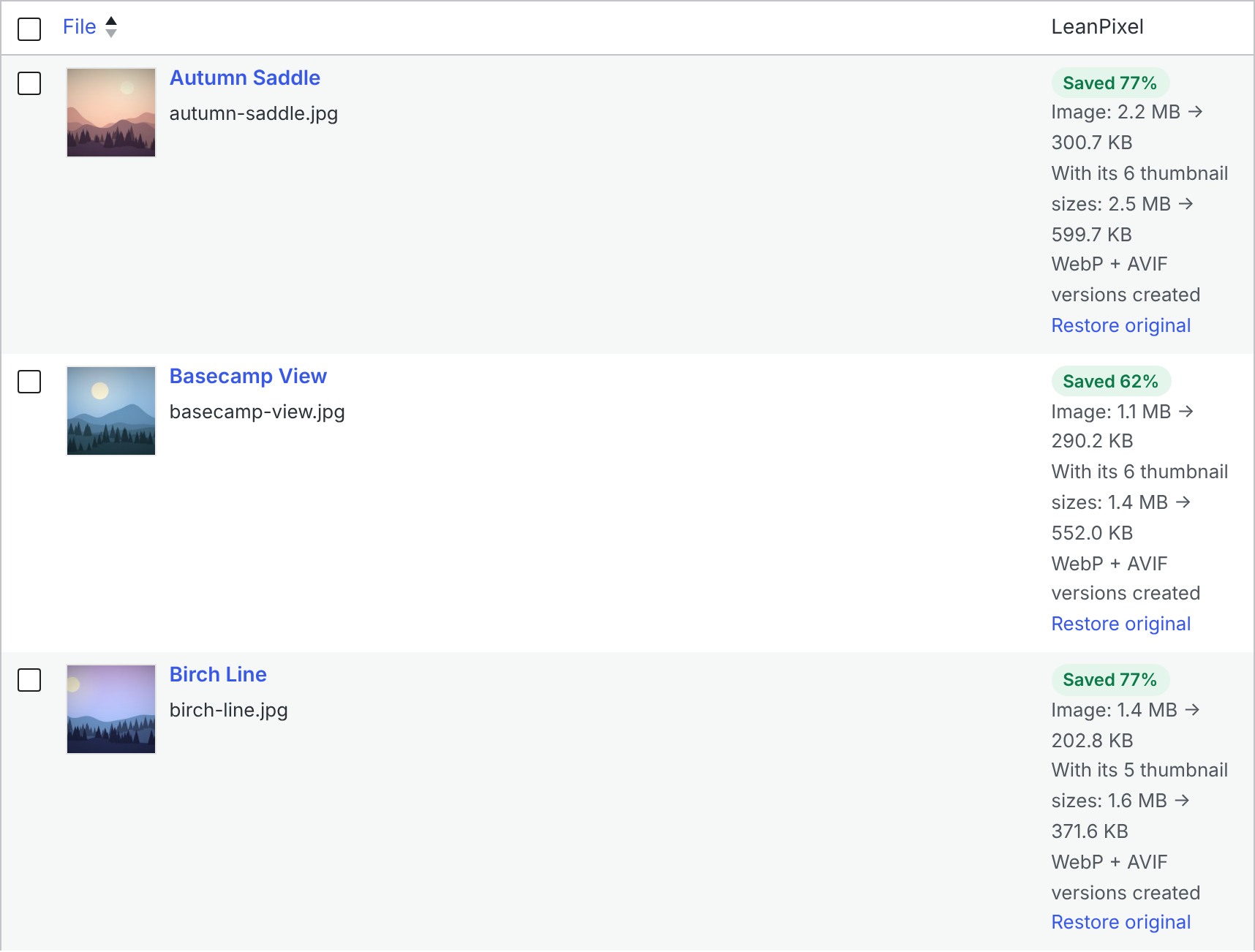
Open a few important pages and look closely at photos of people, text inside images and smooth gradients. If any image looks worse, restore it.
How to undo a bulk optimization
- One image: in the media library, click "Restore original" next to it.
- Several images: switch the media library to list view, select them, and choose "Restore originals (LeanPixel)" from Bulk actions.
Restoring works for as long as the kept originals are on disk. When you are satisfied, the "Delete kept originals" button on the LeanPixel screen frees that space. After that, those images can no longer be restored.
How a bulk run counts against your plan
LeanPixel counts images, not files. An image and all of its thumbnail sizes count as one.
| Plan | Images a month | Websites |
|---|---|---|
| Free | 1,000 | 1 |
| Plus | 20,000 | 5 |
| Agency | 100,000 | 25 |
If your library is larger than your monthly allowance, optimization through the service stops when the allowance is used. It can continue when the allowance resets, or straight away on a larger plan. Processing on your own server has no monthly limit. Current prices are on the LeanPixel pricing page.
Tips for large libraries
- Run it at a quiet time if you process images on your own server, since that uses your hosting plan's processor. With the LeanPixel service the heavy work happens on our servers.
- Watch your disk space. Kept originals and the new WebP or AVIF versions take room until you delete the originals.
- Do not run two image optimizers at once. Switch the other one off first.
- Resize as you go. Turning on a maximum image size during the bulk run deals with oversized uploads in the same pass. See how to reduce WordPress image sizes.
See what you would save first
The free WordPress image optimization test measures the images on any page of your site, so you can judge whether a bulk run is worth it before installing anything.